Twitch's pop-out chat puts the chat in its own window. It's great for a second monitor, for keeping an eye on chat while you play, and as a starting point if you want chat in OBS. Here's how to open it, the direct URL, the dark mode trick and what to use when the pop-out isn't enough.
How to pop out Twitch chat
- Open the channel on twitch.tv.
- Click the gear icon (chat settings) at the bottom of the chat.
- Choose Popout Chat.
The chat opens in its own browser window. You can move it to a second monitor, resize it and keep chatting as usual.
The direct pop-out chat URL
You can also open the pop-out chat directly. Replace CHANNEL with the channel name:
https://www.twitch.tv/popout/CHANNEL/chat?popout=
That's handy for bookmarks, for OBS docks and for tools that ask for a chat URL.
Pop-out chat in dark mode
In a fresh browser, such as OBS or a private window, the pop-out usually opens in light mode. For a dark version, use this URL:
https://www.twitch.tv/popout/CHANNEL/chat?darkpopout
Twitch doesn't officially document darkpopout, so it could stop working at some point. It works at the time of writing.
Popping out chat in the Stream Manager
Streamers can also pop out chat from the Stream Manager: in the My Chat panel, open the menu with the three dots and choose the popout mode. That gives you a separate chat window while the Stream Manager stays open for everything else.
Chat on a second monitor
The pop-out is the easiest way to read chat on a second screen. A few tips:
- Make the text bigger. Browser zoom (Ctrl or Cmd and +) scales the pop-out chat, so you can read it from across the desk.
- Keep it on top. On Windows, the free Microsoft PowerToys tool can pin any window above others with Win + Ctrl + T. That works while your game runs windowed or borderless, not in exclusive fullscreen.
- One monitor only? Stream in windowed or borderless mode and put the pop-out chat next to it. Or use the chat dock in OBS.
Pop-out chat as a dock in OBS
For streamers, the pop-out is also the basis for the chat dock in OBS, a panel inside the OBS window that only you can see.
The quick way: in OBS go to Settings → Stream, choose Twitch and click Connect Account. OBS adds a chat dock automatically, along with docks for stream info, stats and your activity feed.
Without connecting your account:
- Open Docks → Custom Browser Docks.
- Enter a name, for example "Chat".
- Paste the pop-out URL and click Apply.
- Drag the dock where you want it and log in inside the dock if you want to type from there.
On Linux with native Wayland, browser docks are currently unavailable in OBS. Use the pop-out in a normal browser window instead.
Can you show pop-out chat on stream?
Technically yes: add the pop-out URL as a Browser source in OBS and crop away the header and input field. In practice, you're putting a website on stream:
- The background isn't transparent.
- The layout is Twitch's layout, and you can only change it with custom CSS.
- Those CSS tweaks break when Twitch updates its page.
- Depending on your region, a cookie banner can appear in the source.
- 7TV and BTTV emotes don't show up.
For chat on stream, use an overlay made for it. We explain all the options step by step in our guide on how to add Twitch chat to OBS.
Want chat on stream that looks designed?
That's what we built ChatStyle for: a chat overlay for OBS with a transparent background, more than 20 free templates, a visual designer and emotes from Twitch, 7TV, BTTV and FFZ. Your viewers can even get their own look for their messages.
Twitch Basic
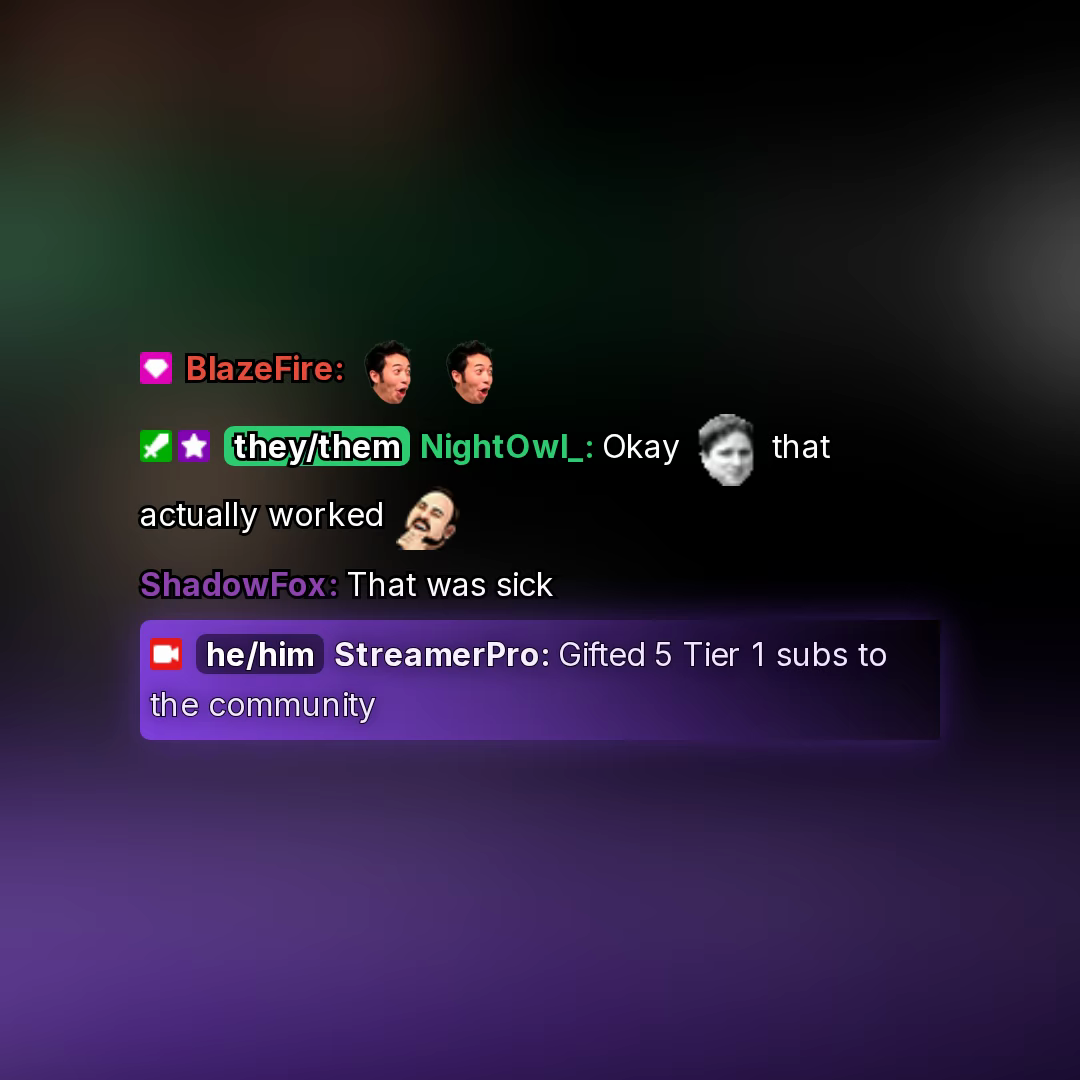
Clean text-only chat — badges, username, and message inline with text shadow for readability.
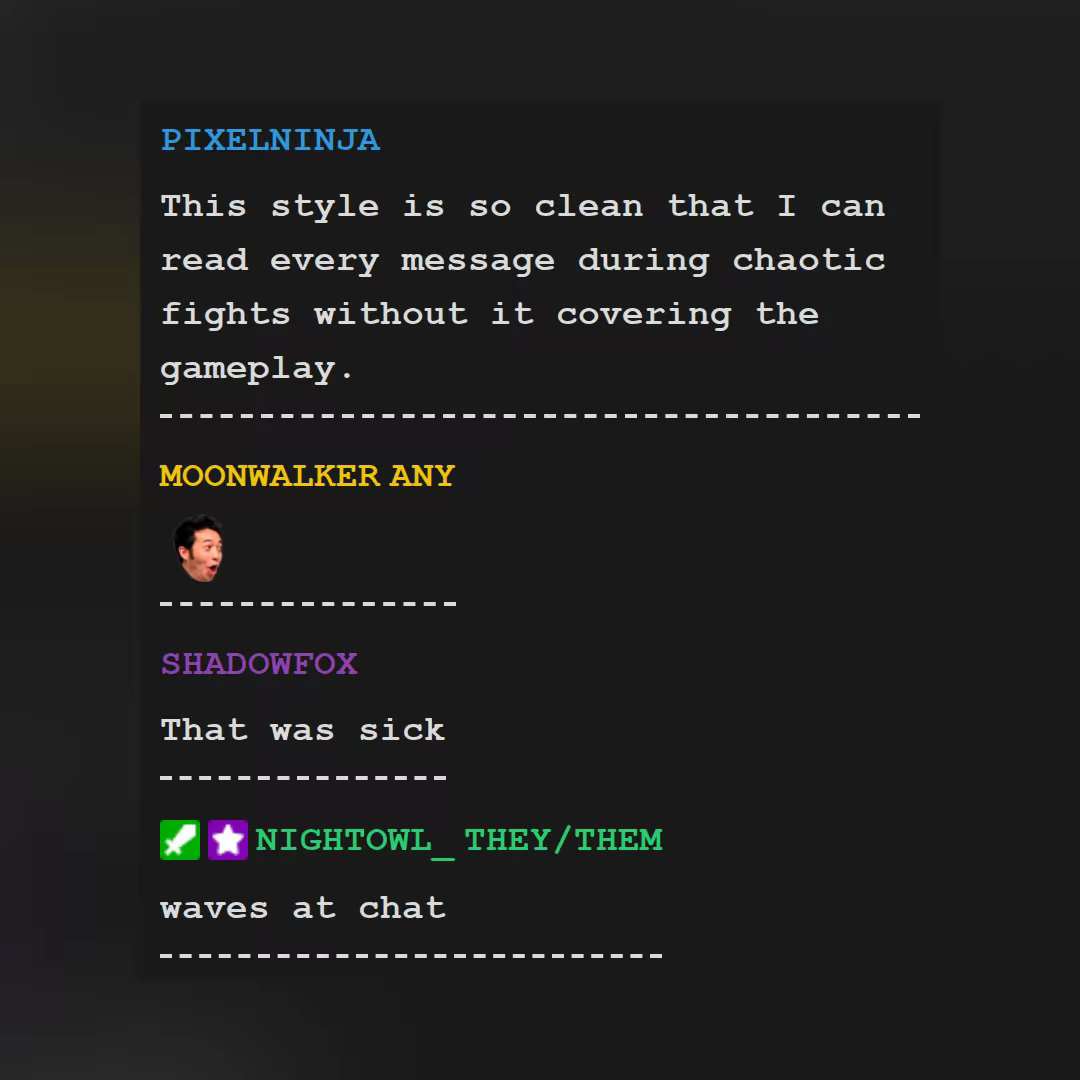
Simple Receipt
Flow Chat
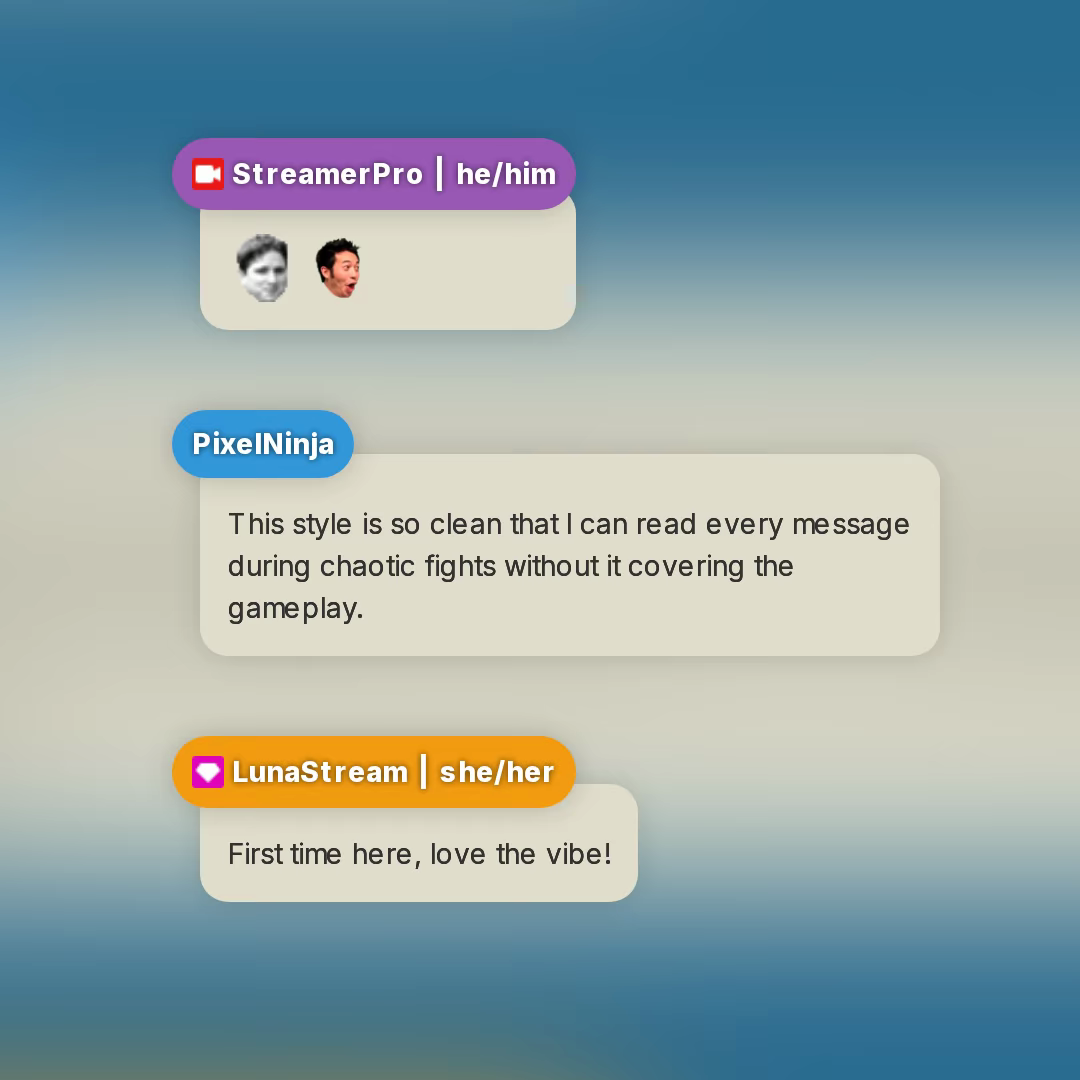
Simple stream chat design overlay template with two floating bubbles.
Browse the chat templates and try one in OBS.