Your chat is half the show. When it's not visible on stream, clips and VODs lose half the conversation, and new viewers can't tell that anyone is talking. So let's get your Twitch chat into OBS and make it look like it belongs in your layout.
The short version
To add Twitch chat to OBS as an overlay:
- Get a chat overlay URL, for example from ChatStyle, Streamlabs, StreamElements or Twitch's pop-out chat.
- In OBS, select your scene and click + in the Sources panel.
- Choose Browser, name the source and click OK.
- Paste the URL, set a width and height (400 × 600 is a good start on a 1080p canvas) and click OK.
- Drag the chat into place and send a test message.
That's the whole setup. The rest of this guide is about choosing the right chat source, making it look good and fixing it when nothing shows up.
Chat dock or chat overlay?
"Twitch chat in OBS" can mean two different things, and a lot of tutorials mix them up.
| Chat dock | Chat overlay | |
|---|---|---|
| Who sees it | Only you | Your viewers |
| Where it lives | A panel in the OBS window | Inside your scene, on stream |
| How you add it | Connect your Twitch account or add a custom browser dock | Browser Source with an overlay URL |
| Good for | Reading and replying while you're live | Showing the conversation on stream, in clips and VODs |
Want to read chat without alt-tabbing? You need a dock. Want your viewers to see chat on stream? You need an overlay. Most streamers use both.
Add a chat dock
The quickest way is Settings → Stream: choose Twitch as the service and click Connect Account. OBS then adds docks for chat, stream info and your activity feed.
If you don't want to connect your account, open Docks → Custom Browser Docks, enter a name and paste your pop-out chat URL:
https://www.twitch.tv/popout/YOURCHANNEL/chat?popout=
Replace YOURCHANNEL with your channel name and click Apply. Log in inside the dock if you want to type from there.
A dock never appears on stream. For that you need one of the three overlay methods below.
Method 1: Twitch pop-out chat as a Browser Source
This is the free "no extra account" route. Twitch's pop-out chat is a regular web page, so OBS can load it like any other website.
- Add a Browser source.
- Paste the pop-out URL from above.
- Crop away the header and input field: hold Alt (Option on macOS) and drag the edges of the source.
It works, but you're putting a website on stream, not an overlay. The background isn't transparent, the layout follows Twitch's design, and depending on your region a cookie banner may show up too. Anything else takes custom CSS, and those snippets break whenever Twitch changes its page. Fine for a quick test, but probably not the look you want every day.
More detail on the pop-out chat, including dark mode and second-monitor use, is in our guide on how to pop out Twitch chat.
Method 2: Streamlabs or StreamElements chat box
Both platforms offer a free chat box widget. You log in with Twitch, pick a style, font and colors, then copy the widget URL into a Browser Source. If you stream with Streamlabs Desktop, the chat box is built right in.
What's good: free, quick to set up, transparent background, 7TV, BTTV and FFZ emotes. The Streamlabs Chat Box can also combine chat from several platforms.
What's not: once you've gone through the built-in styles, fonts and colors, the next step is writing HTML and CSS yourself. That's why so many streams end up with the same-looking chat.
We compared both in detail, including how far you get with custom CSS: Streamlabs Chat Box vs. StreamElements chat.
Other free chat overlays
- ChatIS: open source, with 7TV, BTTV and FFZ emotes, custom fonts and a bot filter. You configure it on a single page and get a URL.
- OWN3D Pro chatbox: free chat box for Twitch, YouTube and Kick.
- Restream Chat: combines chat from all platforms you stream to via Restream and gives you an embed URL for OBS.
- Social Stream Ninja: open source, pulls chat from over 100 sources into one overlay.
Method 3: A designed chat overlay with ChatStyle
Full disclosure: ChatStyle is our tool. We built it because we wanted a chat that looks designed without having to write CSS.
- Sign in at chatstyle.gg with Twitch and choose the streamer account.
- Pick a template. There are more than 20 free ones, and your first overlay is ready as soon as you sign up.
- Adjust fonts, colors, borders and animations in the designer. The preview updates live.
- Copy your overlay URL and paste it into a Browser Source. Or click Add to OBS in the designer: ChatStyle connects to OBS over the built-in WebSocket server and creates the Browser Source in the scene you pick.
- Send a test message.
Cozy leafs
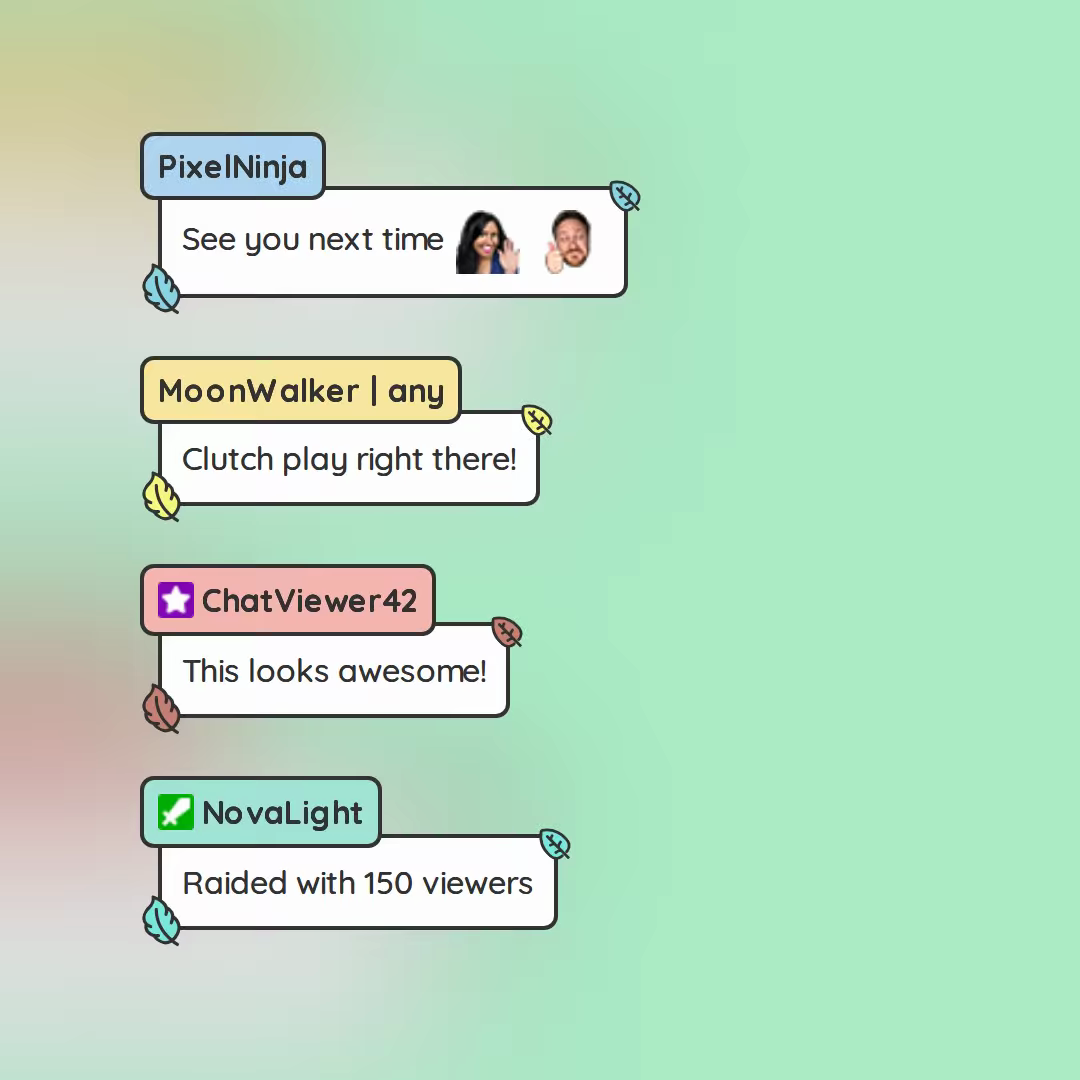
Super cute Chat Design with small leaves as highlights for every bubble. This is staceylucia signature Template.
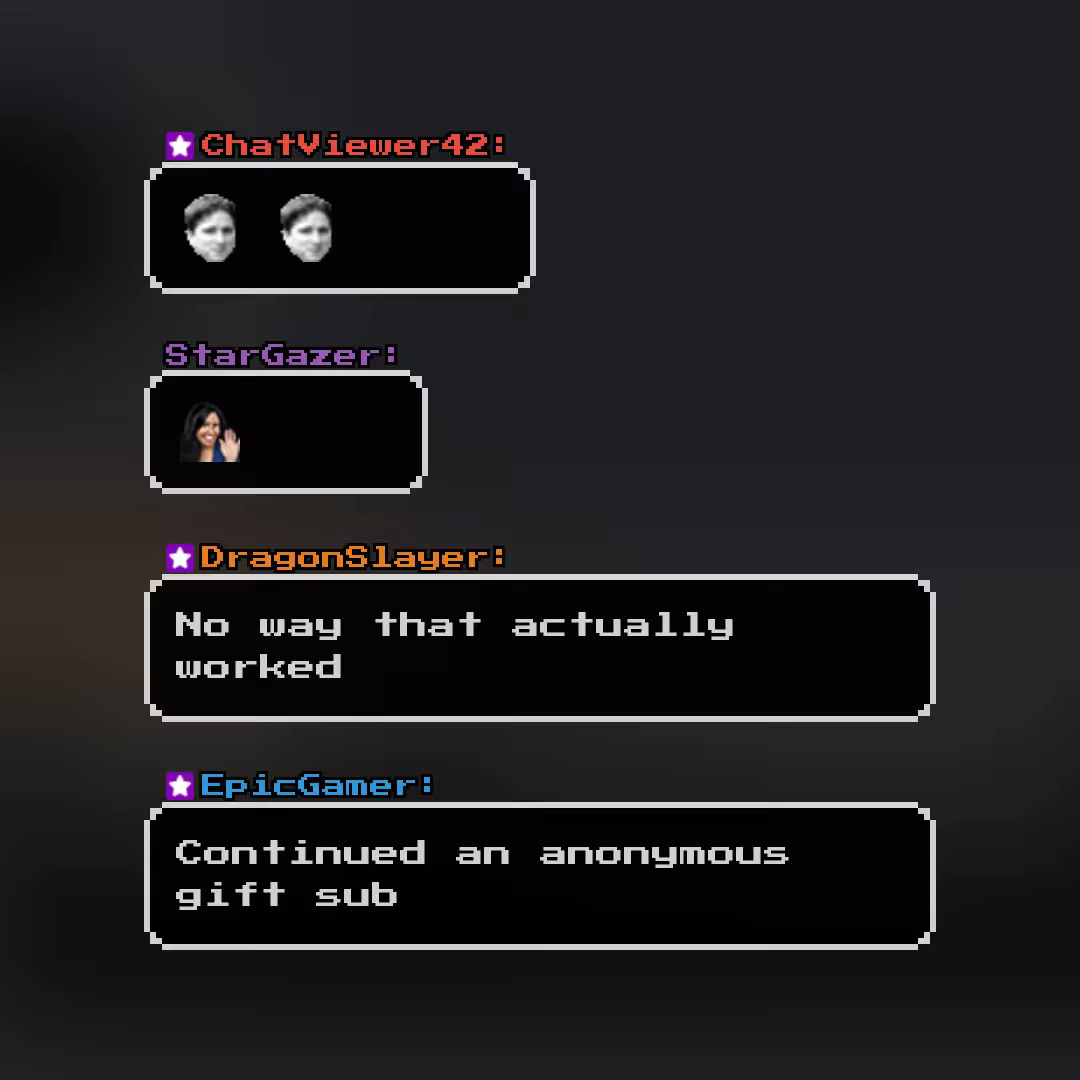
Simple Pixel
Comic Pop
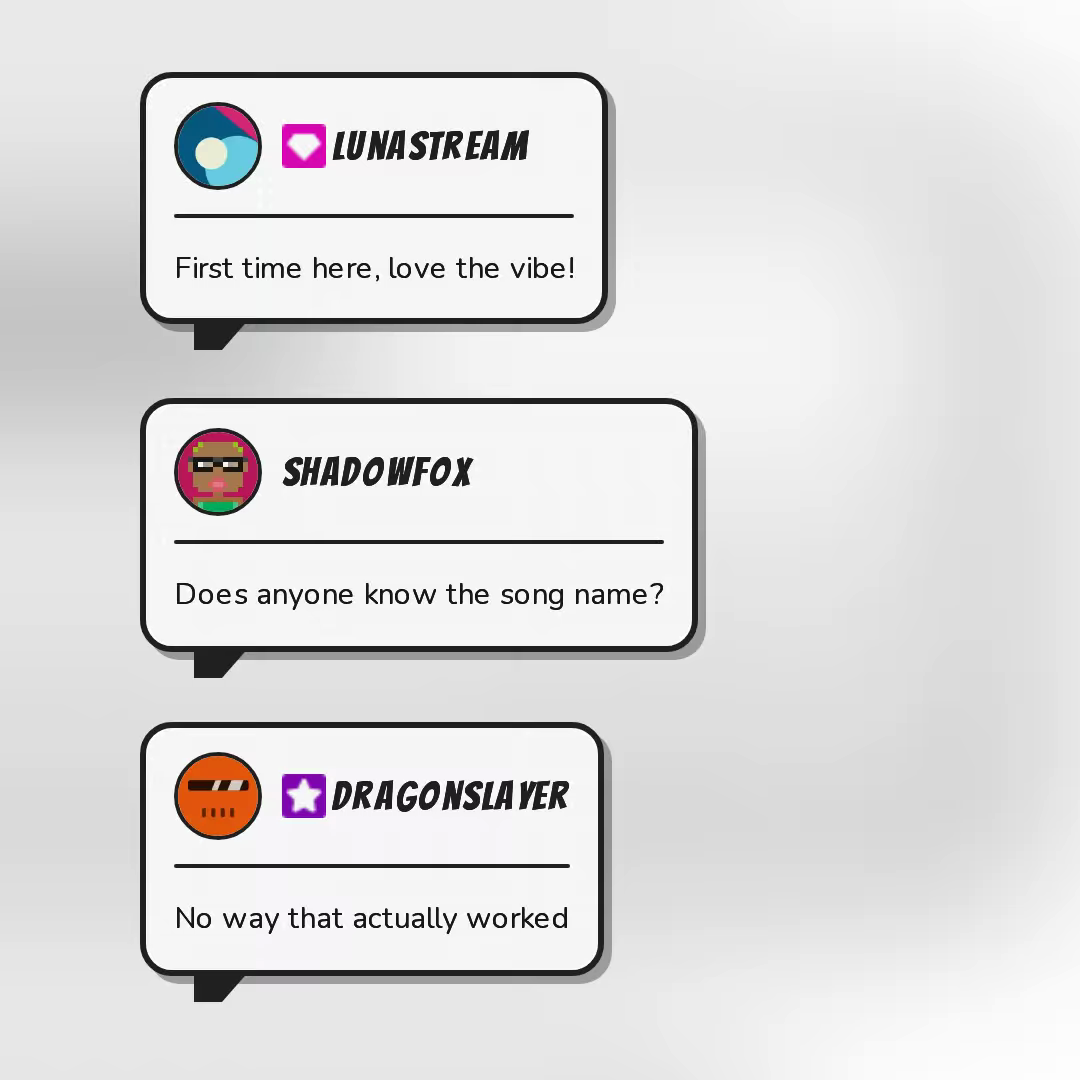
Comic book speech bubble with thick border, hard shadow, halftone dots, speech tail, and bouncy pop entrance.
Treat your overlay URL like a password. Anyone who has it can show your chat, so don't paste it anywhere public. If it leaks, generate a new one in your dashboard and update the Browser Source.
What you get beyond the look:
- Transparent background, no cropping or CSS needed.
- Emotes from Twitch, 7TV, BTTV and FFZ, plus Twitch badges. New 7TV and BTTV emotes show up without reloading the overlay.
- Moderation carries over: messages your mods delete also disappear from the overlay.
- Viewer skins: give subs, VIPs or mods their own look for their messages. Here's how viewer skins work.
- YouTube chat in the same overlay (currently in beta) if you stream to both platforms.
The free plan includes the free templates, emotes, chat settings, role skins and two overlays. Premium adds custom HTML and CSS, more overlays and extra filters. Paid templates are available separately in the template shop.
Which method should you use?
| Twitch pop-out | Streamlabs / StreamElements | ChatStyle | |
|---|---|---|---|
| Price | Free | Free | Free, optional Premium |
| Transparent background | No | Yes | Yes |
| Design options | Twitch's layout | Built-in styles, then CSS | 20+ free templates and a visual designer |
| 7TV, BTTV, FFZ emotes | No | Yes | Yes |
| Platforms | Twitch | Streamlabs: Twitch, YouTube, Kick and more | Twitch, YouTube (beta) |
| Viewer skins | No | No | Yes |
My take: the pop-out is fine for testing. Streamlabs and StreamElements are a solid default if you already use them for alerts, and Streamlabs wins if you need Kick or Facebook chat. If you want your chat to look like part of your stream rather than a widget on top of it, try a designed overlay.
How to make your chat overlay look good
This is the part most guides skip. A chat overlay is part of your layout, so treat it like any other design element.
Put it where it doesn't fight your content
Keep chat away from the game HUD: minimap, health bar, ammo counter, kill feed. Don't let it overlap your facecam either. Popular spots are the left or right edge, often below the camera. Every game puts its HUD somewhere else, so give each scene its own position instead of one spot for everything.
Size it for phones
Plenty of your viewers watch on a phone. A font that's easy to read on your 27-inch monitor turns tiny in a mobile player. Open your stream on your phone once and check. On a 1080p canvas, I'd start at around 22 to 24 pixels and adjust from there. All other dimensions for your layout are in our Twitch overlay size guide.
Contrast beats color
Bright or busy gameplay swallows text. Give messages a background, or at least a text outline or shadow. Then test the overlay over the brightest and darkest moments of your content, not just your menu screen.
Match your stream's style
Use the fonts and colors from your branding. If your overlays are rounded and pastel, a square neon chat will stand out for the wrong reason. The chat should feel like it came from the same designer as the rest of your layout.
Show less, not more
Don't fill half the screen with messages. Five to ten messages are plenty during gameplay. Just Chatting scenes can show more. Let messages disappear after 15 to 30 seconds so old conversations don't linger. In ChatStyle you set this with the message limit and message lifetime.
Bot messages and chat commands clutter the overlay fast. ChatStyle hides commands by default, and with Premium you can also hide specific accounts like Nightbot or StreamElements. And if chat gets rowdy, clear chat rules help more than any filter.
Keep animation subtle
A short entrance animation helps new messages get noticed. Constant bouncing or long effects compete with your gameplay. Pick something quick and let it settle.
Don't forget your emotes
If your community lives in 7TV or BTTV emotes, your overlay has to show them. Otherwise half the messages turn into codes like "KEKW" on stream.
Using a different streaming app?
A chat overlay is just a web page, so every streaming app that can show a website works the same way.
- Streamlabs Desktop: add a Browser Source, or use the built-in Chat Box.
- Meld Studio: add a Browser source. Meld also has its own chat widget.
- XSplit Broadcaster: add a Webpage source. XSplit also has a built-in Stream Chat Viewer.
- PRISM Live Studio: add a Web source, or use the built-in PRISM chat source.
- vMix: add a Web Browser input. It supports transparent backgrounds.
Twitch Studio isn't an option anymore: Twitch shut it down in 2024.
We build and test ChatStyle with OBS Studio. Other apps with a browser source can load the same overlay URL, but menus and options differ.
Chat not showing in OBS? Quick fixes
- The source stays empty: check the URL for missing characters. Then open the source properties and click Refresh cache of current page.
- Old messages are missing: most overlays only show messages that arrive after the overlay loads. Send a test message.
- White or black background: open the source properties and check the Custom CSS field. OBS's default CSS keeps the background transparent. Twitch's pop-out chat is never transparent without extra CSS.
- Chat freezes after switching scenes: check Shutdown source when not visible in the source properties. If it's on, the overlay reconnects every time the scene becomes visible.
- Emotes are missing: check the emote settings of your overlay. Most tools need 7TV, BTTV or FFZ enabled separately.
- All browser sources stay blank: go to Settings → Advanced → Sources, toggle Enable Browser Source Hardware Acceleration and restart OBS.
- Nothing helps: remove the source, add it again and restart OBS. If you've regenerated your ChatStyle overlay URL, the old one stops working, so paste the new one.
Your chat, your look
Getting chat into OBS takes five minutes. Making it look like part of your stream takes a little more thought, and that's the part your viewers notice.
Browse the chat templates, pick one that fits your stream and add it to OBS.