Wrong sizes are the most common reason a stream layout looks slightly off: a blurry webcam frame, an emote that turns to mush at 28 pixels, a banner with your name cut off. This guide collects every size you need for Twitch in one place, from the overlay canvas to your chat box, emotes and banners.
Where Twitch publishes official numbers, you'll find those. Where it doesn't, we give the common convention and say so.
Twitch size cheat sheet
| Element | Size | Notes |
|---|---|---|
| Overlay canvas (1080p) | 1920 × 1080 | Standard for most streams |
| Overlay canvas (720p) | 1280 × 720 | Lower bitrate, same 16:9 layout |
| Overlay canvas (2K) | 2560 × 1440 | Partners and Affiliates, needs Enhanced Broadcasting |
| Vertical canvas | 1080 × 1920 | Dual Format, 9:16 |
| Chat overlay | about 400–500 × 600–900 | Convention on a 1080p canvas |
| Alert box | 800 × 600 | Convention used by most alert packs |
| Profile picture | JPEG, PNG or GIF, max. 10 MB | Square image |
| Profile banner | 1200 × 480 | Keep key graphics on the left |
| Offline banner | 1920 × 1080 | Convention, no animation |
| Panels | 320 px wide | Keep under 300 px tall to be safe |
| Emotes | 112 × 112 (auto-resized) or 28, 56 and 112 | PNG, max. 1 MB |
| Sub and bit badges | 18, 36 and 72 | PNG, max. 25 KB |
Overlay canvas size
Your overlays should match your OBS canvas. Twitch's recommended stream settings are built around 1920 × 1080 and 1280 × 720, and for most streamers 1920 × 1080 is the right starting point: 1080p at 60 fps with 6,000 kbps, or 720p when your upload can't handle that.
Design your overlays at 1920 × 1080 even if you stream in 720p. OBS scales them down cleanly, while scaling a 720p design up makes everything soft.
2K streaming (1440p)
Since June 2026, Partners and Affiliates can stream in 2K. It needs Enhanced Broadcasting, OBS 32.0 or newer and a canvas and output of at least 2560 × 1440 at 60 fps. Twitch only shows 2K to logged-in viewers on supported devices and in some regions, so treat it as a bonus, not your only target. If you switch, rebuild your overlays at 2560 × 1440 or check that your 1080p graphics still look sharp when scaled.
Vertical streams (Dual Format)
Twitch's Dual Format sends a vertical version of your stream alongside the regular one. The vertical canvas is 1080 × 1920 (9:16), and Twitch mentions 720 × 1280 as the smaller option. In OBS you need version 32.0 or newer, the Aitum Vertical plugin and Enhanced Broadcasting enabled under Settings → Stream.
Two things to know for your layout:
- Leave out the chat overlay in the vertical view. Twitch adds chat to the vertical view on its own, and mobile viewers can choose how much of it they see.
- Keep important graphics in the center. Twitch places its own chat and controls over the vertical view.
Sizes for overlay elements
Twitch doesn't set sizes for the elements inside your scene. These are the conventions most overlay packs use on a 1920 × 1080 canvas.
Webcam frame
Common frame sizes are 480 × 270 or 640 × 360, both 16:9. Just Chatting layouts often use a much larger camera, up to half the screen or more. There's no standard here: size the camera for what your stream is about.
Chat overlay
A chat column next to gameplay is usually around 400 to 500 pixels wide and 600 to 900 pixels tall. In Just Chatting scenes, chat can take up more room because there's no game HUD to keep clear.
More important than the box size is the text inside it. A lot of viewers watch on phones, so on a 1080p canvas we'd start at a font size of about 22 to 24 pixels and check your stream on your phone once. Keep the box away from minimaps, health bars and kill feeds, and give messages a background or outline so they stay readable over bright scenes.
Setting chat up in OBS is covered step by step in our guide on how to add Twitch chat to OBS.
Cozy leafs
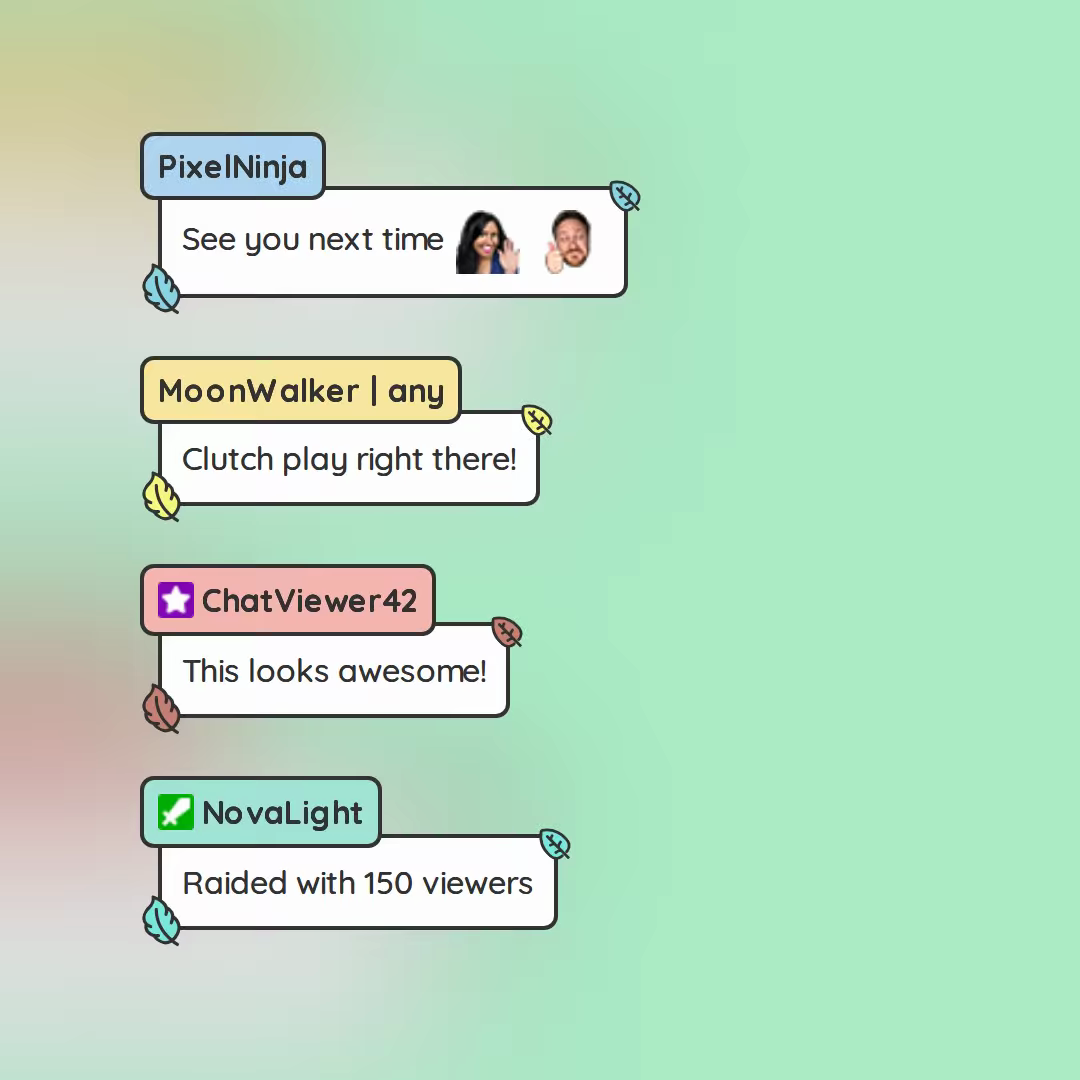
Super cute Chat Design with small leaves as highlights for every bubble. This is staceylucia signature Template.
Flow Chat
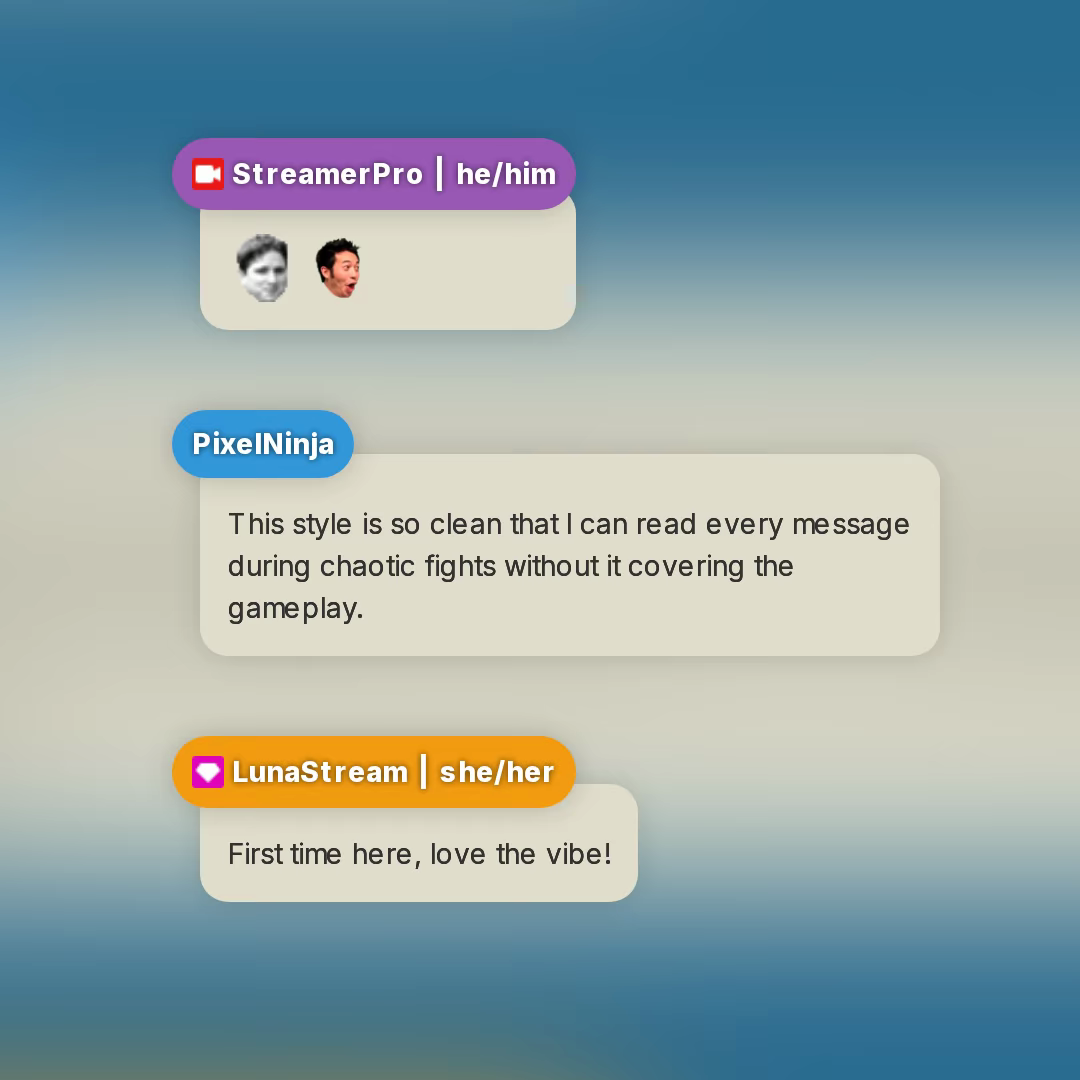
Simple stream chat design overlay template with two floating bubbles.
Simple Pixel
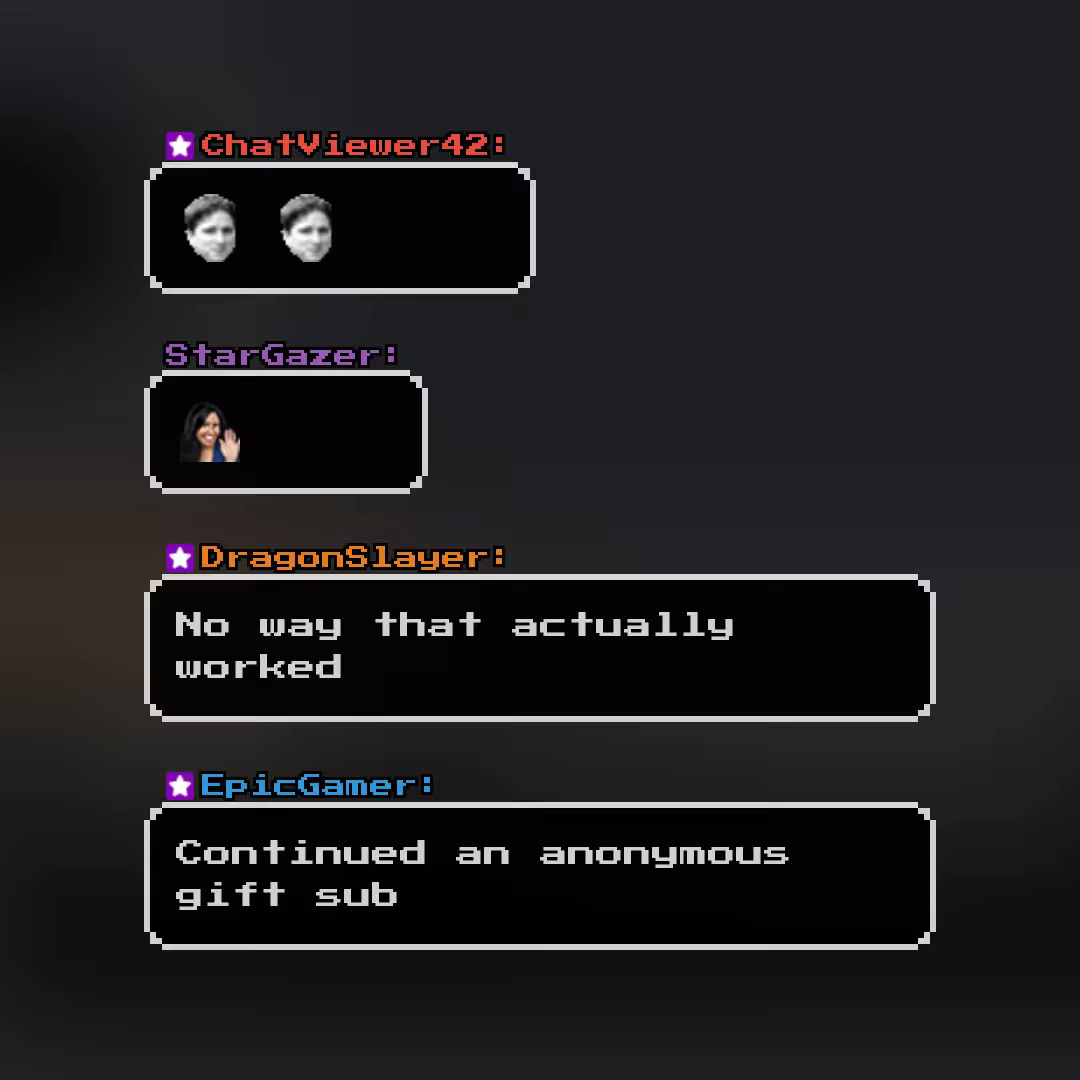
Alerts, labels and goals
Alert boxes are usually 800 × 600, which is also the default size of a new Browser Source in OBS. Labels for recent followers or goals are small text elements, so size them to fit your text. Full-screen scenes such as "Starting soon", "Be right back" and "Ending" use the full 1920 × 1080.
Channel page sizes
Profile picture
Twitch accepts JPEG, PNG and GIF up to 10 MB. It doesn't list an official pixel size, so upload a square image with plenty of resolution. 800 × 800 gives you headroom. Your profile picture shows up small in chat, the sidebar and search, so keep it simple and recognizable.
Profile banner
The recommended size is 1200 × 480. Twitch scales the banner to 480 pixels high and stretches it on wide screens, so make it as wide as possible and keep your name and important graphics on the left.
Offline banner
The offline banner shows in your video player while you're not live. Twitch doesn't list dimensions for it; the common size is 1920 × 1080, matching the player. Animated banners aren't supported.
Panels
Panels are 320 pixels wide. Twitch's own help pages disagree on the maximum height (one says 300 pixels, another 600), so if you want to be safe, keep panels under 300 pixels tall and under 1 MB.
Emote and badge sizes
Emotes
Static emotes are square PNGs with a transparent background, up to 1 MB. You can either upload one image between 112 × 112 and 4096 × 4096 and let Twitch resize it, or upload three files at 28 × 28, 56 × 56 and 112 × 112.
Animated emotes are square GIFs with up to 60 frames. The limit is 1 MB with auto-resize, or 512 KB per file if you upload each size yourself. They must not flash more than three times per second.
Always check your emote at 28 × 28. That's the size most people see in chat, and fine details disappear fast.
Sub badges, bit badges and channel points
Subscriber and bit badges come in 18 × 18, 36 × 36 and 72 × 72, as PNGs with a transparent background and up to 25 KB. Channel points icons are commonly made at 28, 56 and 112 pixels. Twitch's help pages don't list official sizes for them.
Before you go live
- Open your stream on your phone and check whether chat, labels and your webcam are still readable.
- Make sure nothing important sits under the game HUD or at the very edge of the screen.
- Test your chat overlay with long messages, emotes and a busy chat, not just one test line.
Want a chat overlay that fits your layout instead of a default box? Browse the chat templates, adjust size, fonts and colors in the designer and add it to OBS.