Your regulars already have a style
You know the viewer who turns every moment into an emote wall. The mod who keeps things moving. The regular whose first message is always the same terrible joke.
Custom Twitch chat bubbles give those familiar names another way to show their personality on stream. With ChatStyle, viewers can choose from the skins you've made available for your channel, while you decide what fits your overlay.
A skin is a different look for a chat bubble. Your template sets the overall design; skins give individual messages their own variation within it.
One channel, room for different personalities
Think of a cozy stream with a soft chat design. You could offer a few gentle color variations so viewers can pick a favorite. On a louder, arcade-inspired stream, a brighter selection might feel right at home.
The useful part is the choice. A viewer gets to pick something that feels like them, from a selection that belongs on your stream.
Start with a small set. A few looks you actually like will be easier to introduce to chat than a huge collection nobody knows how to choose from. Give each option enough character to feel different, then check that messages remain easy to read over your usual scenes.
Comic Pop
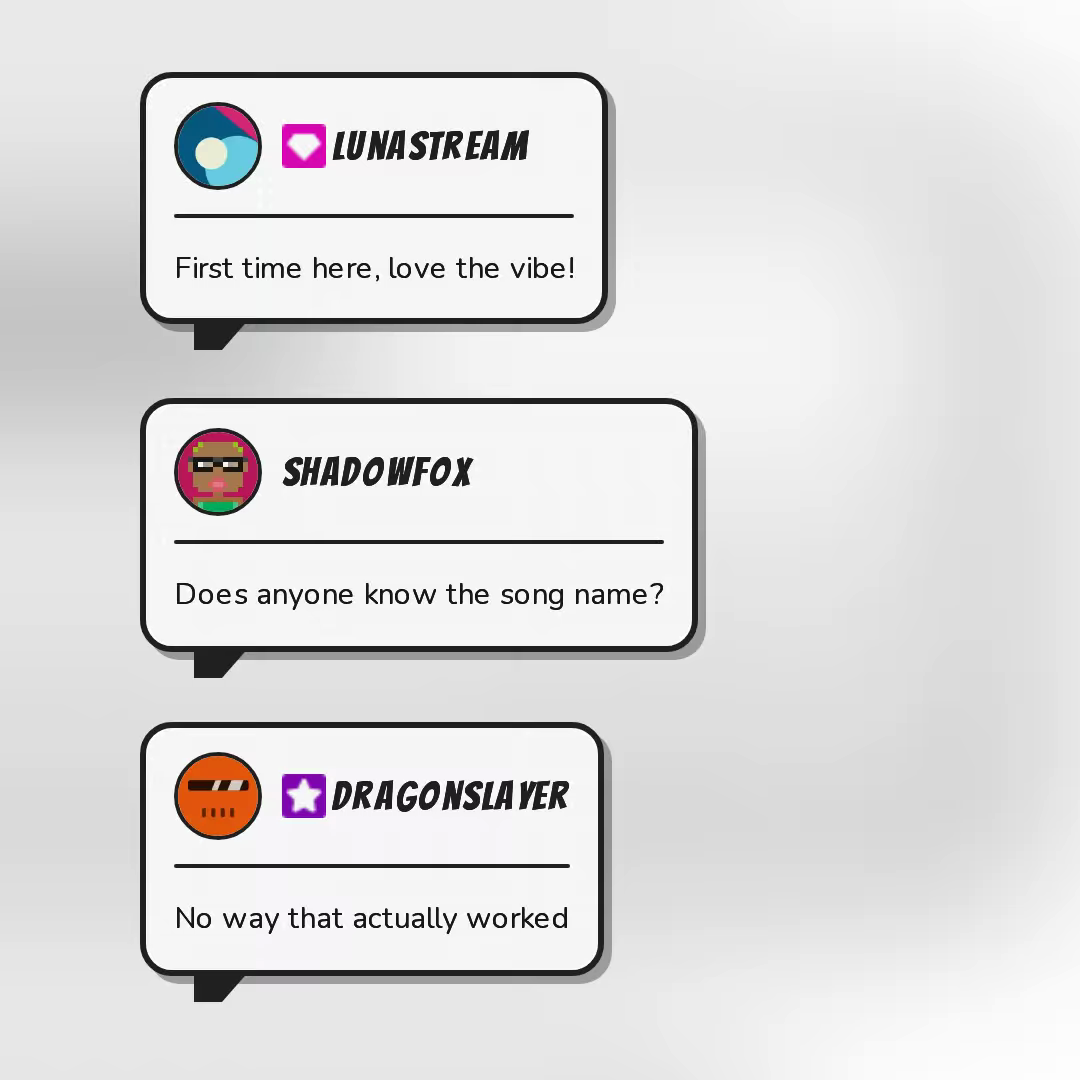
Comic book speech bubble with thick border, hard shadow, halftone dots, speech tail, and bouncy pop entrance.
You decide who gets access
Viewer choice works best when you can shape it. ChatStyle gives streamers controls over skin availability and access for roles such as followers, subscribers, VIPs and moderators.
You might make a few looks available to everyone, then reserve others for subscribers or VIPs. You could also give your moderators a recognizable look that suits the channel. These are options for your community, rather than a reward ladder you have to follow.
If your chat prefers a consistent look, keep the selection tight. If trying different styles becomes part of the fun, expand it from there.
How viewers join in
Once you've made skins available, viewers can sign in to ChatStyle, visit your channel's shop page and select a skin they have access to. That selection changes how their messages appear in your ChatStyle overlay.
The styling appears on your stream. It doesn't change the appearance of Twitch's own chat panel.
For a first try, invite a couple of regulars to choose different skins and send a few messages. You'll get a much better sense of the result with your community's actual chat than with a row of identical sample messages.
Capyvarias
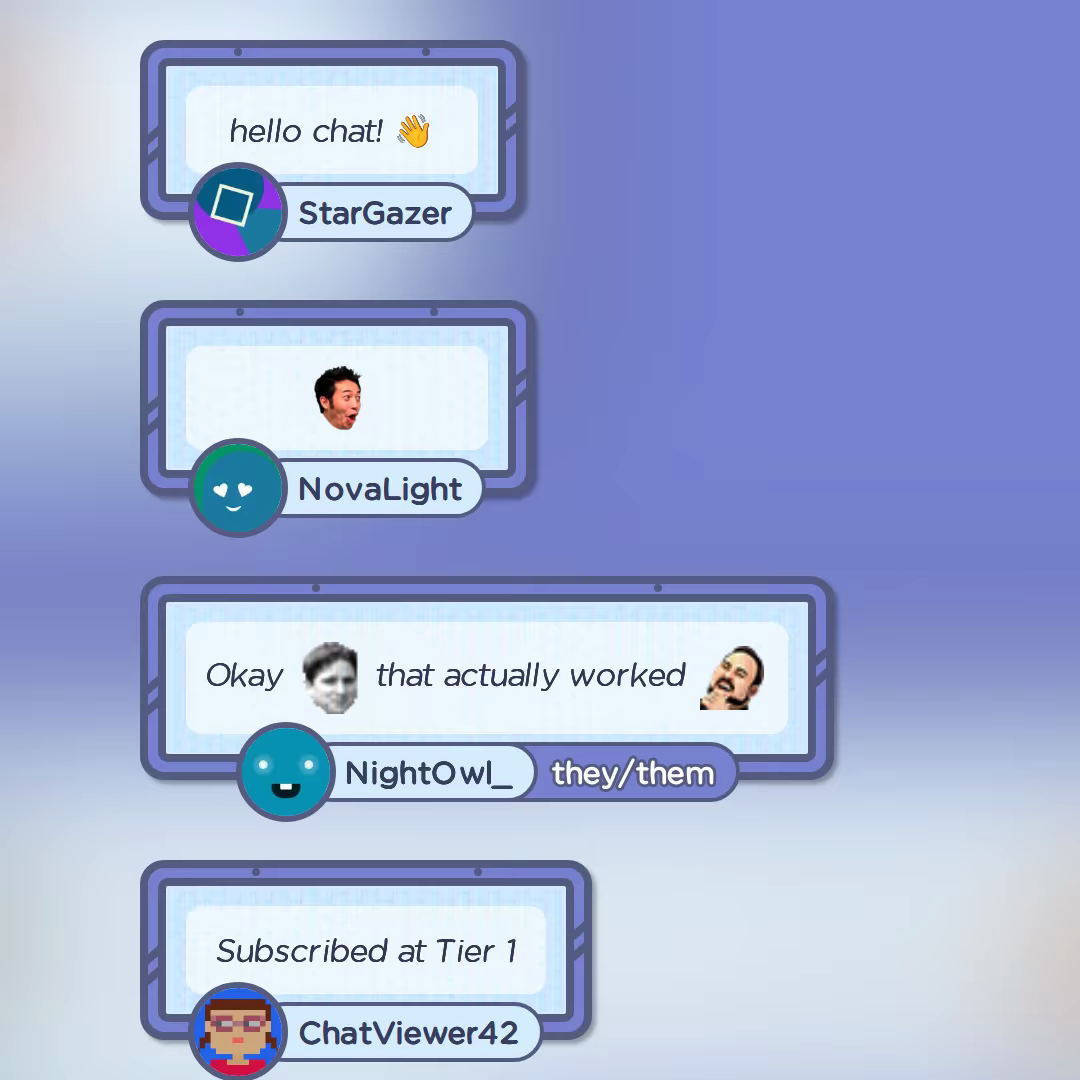
The official Chat Template for "Capyvarias", developed by the amazing KiraniPieBox. Checkout his Twitch Profile and don't forget to buy the Game on Steam.
Hex Grid
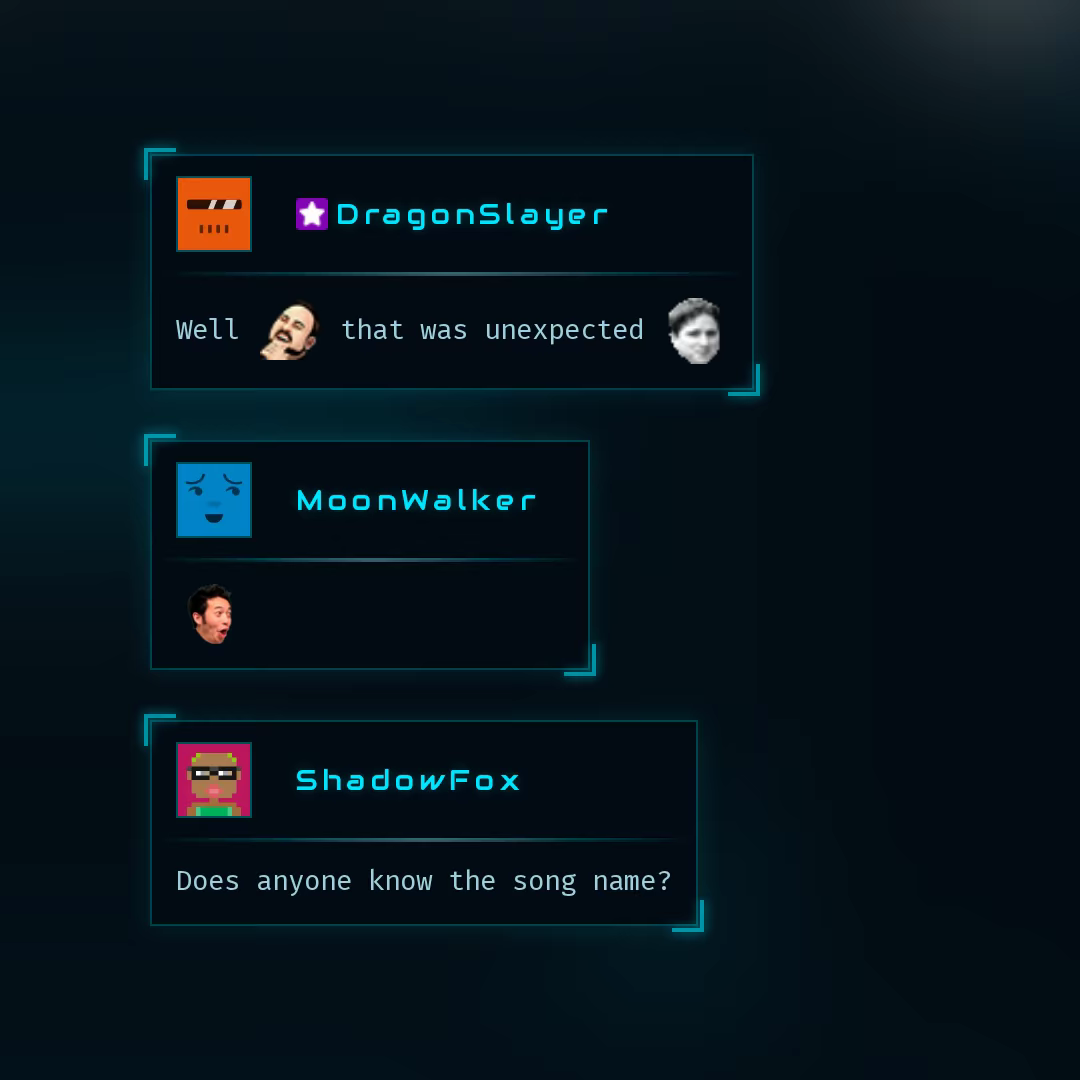
Sci-fi tactical HUD bubble with corner brackets, scanning line, and military targeting aesthetics.
Flow Chat
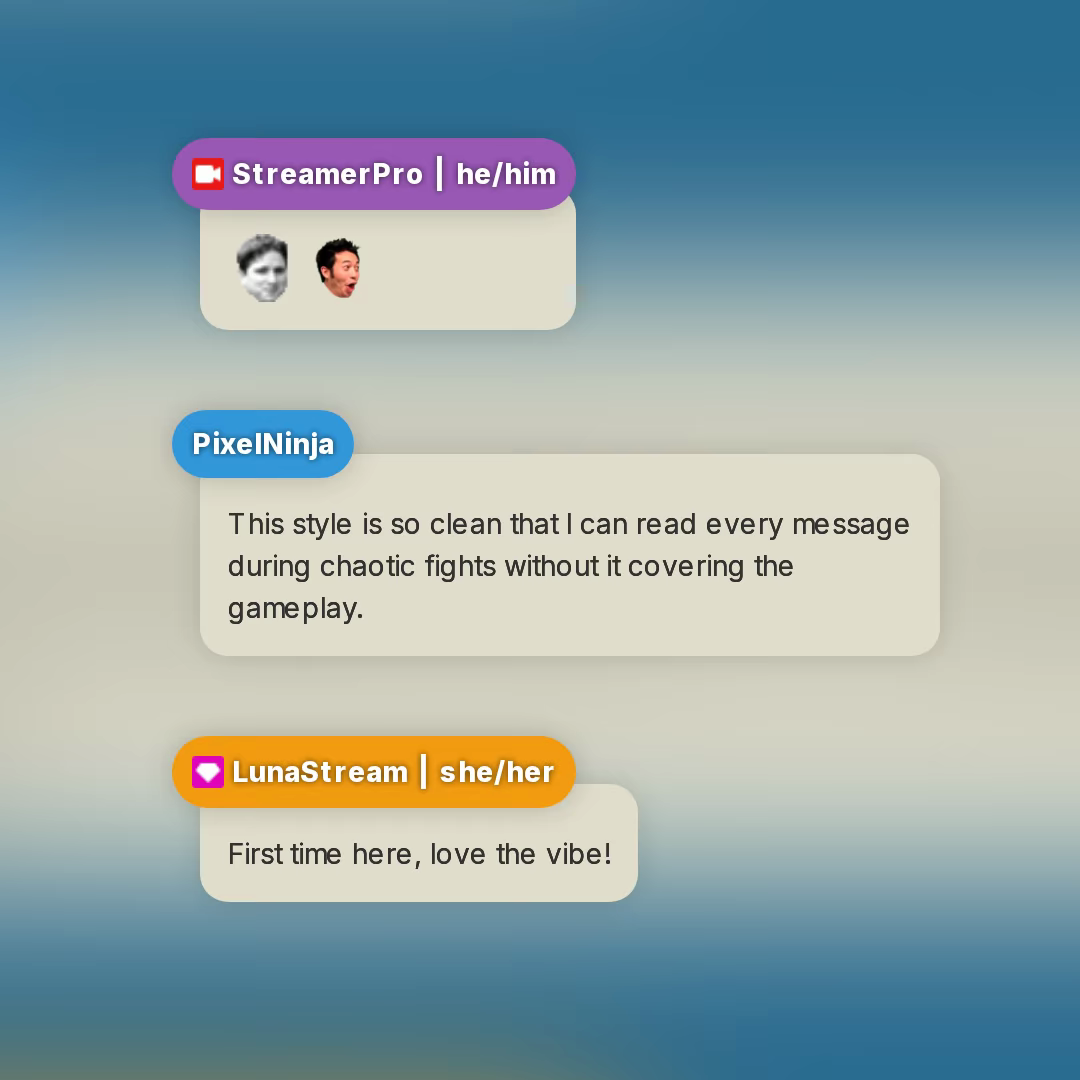
Simple stream chat design overlay template with two floating bubbles.
Bring it into your OBS scene
ChatStyle works as a Twitch chat overlay for OBS through a Browser Source. Choose your template, set up the overlay in your scene, then decide which skins to offer your viewers.
Leave enough room for longer messages and emotes. Check the result over both bright and dark moments in your content. If the design draws your eye but makes the conversation harder to follow, simplify the selection or adjust the look.
Your community already gives your stream its personality. A personalized chat overlay gives a little more of that personality a place on screen.
Browse chat templates, pick a look that fits your channel, and choose the first skins you want your regulars to try.